19
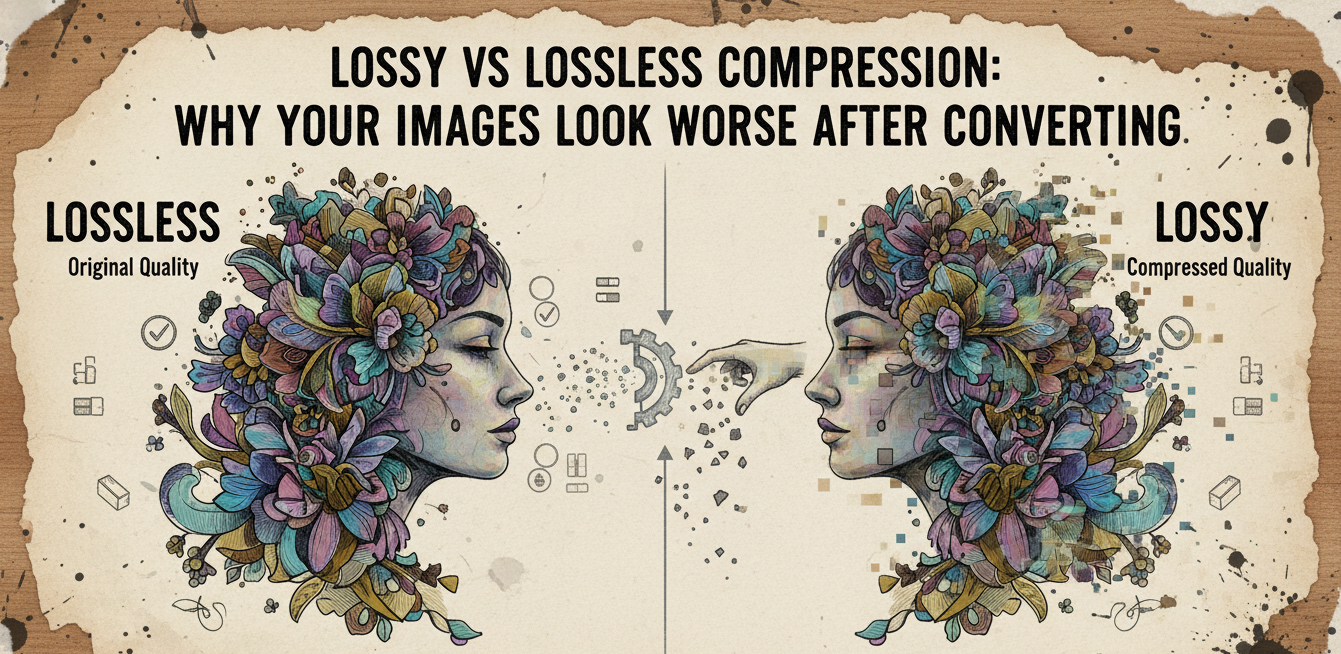
Lossy vs Lossless Compression: Why Your Images Look Worse After Converting
Understand the fundamental difference between lossy and lossless image compression. Learn why repeated conversions degrade quality, how generation loss works, and how to protect your images from unnecessary damage.
The Two Philosophies of Making Files Smaller
Every image file on the internet has been compressed in some way. Without compression, a single 12-megapixel photograph from your phone would occupy over 36 megabytes of storage — roughly 36 times larger than the JPG file your phone actually saves. Compression is what makes digital photography, web browsing, and image sharing practical.
But not all compression works the same way. The two fundamental approaches — lossy and lossless — make radically different tradeoffs, and understanding this distinction is the single most important concept in digital imaging.
Lossless Compression: Nothing Is Lost
Lossless compression reduces file size by finding and eliminating statistical redundancy in the data — without altering any pixel values. When you decompress a losslessly compressed image, the result is mathematically identical to the original, bit for bit.
How it works: Imagine you have a row of pixels that reads: “blue blue blue blue blue red red green green green green green green green green.” Instead of storing each color individually (15 values), lossless compression stores: “5×blue, 2×red, 8×green” (3 values). The original data can be perfectly reconstructed from this compressed representation because no information has been discarded.
Real lossless algorithms like DEFLATE (used in PNG) and LZW are more sophisticated than simple run-length encoding, but the principle is the same: find patterns, encode them efficiently, and preserve every bit of the original data.
Formats that use lossless compression: PNG, WebP (lossless mode), TIFF (with lossless compression), GIF (limited to 256 colors), BMP (uncompressed, technically lossless by default).
Typical compression ratio: 2:1 to 3:1 for photographs, 10:1 or better for simple graphics with large areas of uniform color.
Lossy Compression: Controlled Destruction
Lossy compression achieves dramatically better compression ratios by permanently removing data that the algorithm determines to be least perceptible to the human eye. Once this data is removed, it cannot be recovered from the compressed file.
How it works: Lossy algorithms analyze the image to identify details that human vision is least likely to notice. For JPG, this means removing high-frequency spatial detail (fine textures, subtle gradients) and reducing color precision. The algorithm exploits known limitations of human perception: we are more sensitive to brightness changes than color changes, more sensitive to gradual transitions than abrupt ones, and less sensitive to fine detail in textured areas.
The result is a file that looks nearly identical to the original but is 10 to 50 times smaller. At high quality settings (85–95), the difference is practically invisible to the naked eye. At lower quality settings (30–60), artifacts become visible as blocking, banding, ringing around edges, and color shifting.
Formats that use lossy compression: JPG, WebP (lossy mode), AVIF, HEIF.
Typical compression ratio: 10:1 to 50:1 for photographs, depending on quality setting.
Generation Loss: The Silent Quality Killer
The most dangerous consequence of lossy compression is generation loss: the progressive degradation that occurs when a lossy-compressed file is opened, edited, and re-saved multiple times.
Each time you save a JPG file, the entire lossy compression process runs again. The quantization step discards more high-frequency data — but this time, it is working on data that has already been degraded by the previous save. Details that survived the first compression may not survive the second. After 10 or 20 re-saves, even a high-quality JPG degrades to a visibly blurry, artifact-ridden mess.
This is why you should never use JPG as a working format for images you plan to edit repeatedly. Always work in PNG, TIFF, or your software’s native format, and export to JPG only as the final step.
Why Your Images Look Worse After Converting
There are several common scenarios where people inadvertently degrade their images through format conversion:
Scenario 1 — JPG to JPG re-encoding: You download a JPG, open it in an editor to crop or resize, and save it as JPG again. Each save cycle compounds the lossy compression damage, even if you choose “maximum quality.” The only way to avoid this is to save the edited version as PNG or to use a tool that performs the crop/resize without re-encoding the entire image.
Scenario 2 — Format round-tripping: You convert a JPG to PNG (gaining file size but not quality), then later convert it back to JPG (adding another round of lossy compression on top of the existing damage). The result is a smaller file than the PNG, but with worse quality than the original JPG.
Scenario 3 — Social media re-compression: You upload a carefully optimized image to a social media platform. The platform re-encodes it as a lower-quality JPG for its servers. Someone downloads it from the platform and re-uploads it elsewhere. Another round of re-compression. After several cycles through social media platforms, the image is severely degraded.
Scenario 4 — Screenshot of a compressed image: Taking a screenshot of a JPG displayed on screen and saving it as a new file introduces the display rendering’s interpolation plus whatever compression the screenshot tool applies.
How to Protect Your Image Quality
Rule 1: Always keep master copies of important images in a lossless format (PNG, TIFF, or RAW). Never rely on a JPG as your only copy of an important image.
Rule 2: Minimize the number of times a lossy-compressed file is decoded and re-encoded. Every decode-edit-encode cycle degrades quality.
Rule 3: When converting formats, understand what you are gaining and losing. Converting lossless to lossy saves space but loses data. Converting lossy to lossless preserves current quality but gains file size.
Rule 4: Use the right format for the right purpose. JPG for photographs on the web. PNG for graphics, screenshots, and transparency. WebP when you want the best of both worlds with modern browser support.
Rule 5: When you must use lossy compression, choose the highest quality setting that meets your file size requirements. The difference between quality 85 and quality 95 is often barely visible, but the difference between quality 50 and quality 85 is dramatic.
The Bottom Line
Understanding the difference between lossy and lossless compression empowers you to make informed decisions about your image workflow. Neither approach is inherently better — they serve different purposes. The damage occurs when people unknowingly chain lossy operations together, compounding quality loss at each step.
Use lossless formats for preservation and editing. Use lossy formats for efficient delivery. Convert wisely, convert once, and always keep your originals. Your images will thank you.