19
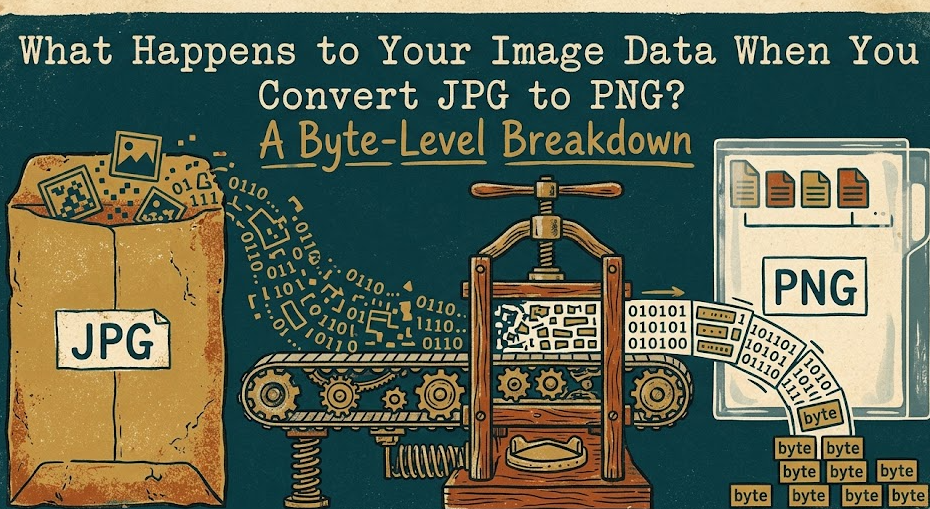
What Happens to Your Image Data When You Convert JPG to PNG? A Byte-Level Breakdown
Discover what actually happens at the byte level when you convert a JPG image to PNG. Learn why the conversion cannot recover lost data, how file sizes change, and when this conversion actually makes sense.
The Most Misunderstood Image Conversion
One of the most common misconceptions in digital imaging is that converting a JPG file to PNG will somehow improve its quality. Millions of people perform this conversion daily, often believing they are “upgrading” their image to a superior format. But what actually happens to your image data during this process?
The answer requires understanding how these two formats store pixel information at a fundamental level — and why the conversion is a one-way street that cannot undo the damage already done by JPG compression.
How JPG Stores Your Image
When you save an image as JPG, the encoder performs a multi-step compression process:
Step 1 — Color Space Conversion: Your image is converted from RGB (Red, Green, Blue) to YCbCr color space. The Y channel stores brightness (luminance), while Cb and Cr store color information (chrominance). This separation is critical because the human eye is far more sensitive to brightness changes than color changes.
Step 2 — Chroma Subsampling: The color channels (Cb and Cr) are typically reduced to half or quarter resolution. This is called 4:2:0 subsampling, and it immediately discards 75% of color spatial resolution. Your eye barely notices this loss in photographs, but it is permanent and irreversible.
Step 3 — Block Division: The image is divided into 8×8 pixel blocks. Each block is processed independently, which is why JPG artifacts tend to appear as small squares when compression is aggressive.
Step 4 — Discrete Cosine Transform (DCT): Each 8×8 block is transformed from spatial pixel data into frequency coefficients. This mathematical transform converts pixel brightness values into a representation of how quickly brightness changes across the block.
Step 5 — Quantization: This is where the actual data loss occurs. The frequency coefficients are divided by values from a quantization matrix, then rounded to integers. High-frequency details — fine textures, subtle gradients, thin lines — are reduced to zero and permanently eliminated. Lower quality settings use more aggressive quantization matrices, destroying more detail.
Step 6 — Entropy Coding: The remaining quantized coefficients are compressed using Huffman coding or arithmetic coding. This final step is lossless and simply makes the file smaller without discarding any more information.
How PNG Stores Your Image
PNG takes a fundamentally different approach. It uses lossless DEFLATE compression, which means every single pixel value in the output is mathematically identical to the input. Not approximately similar. Identical.
PNG first applies a prediction filter to each row of pixels (choosing from five filter types: None, Sub, Up, Average, and Paeth). These filters do not change the pixel values — they transform them into a representation that compresses more efficiently. The filtered data is then compressed using the DEFLATE algorithm (the same algorithm used in ZIP files), which finds and eliminates statistical redundancy without losing any information.
What Actually Happens During JPG to PNG Conversion
When you convert a JPG to PNG, here is the exact sequence of events:
1. The JPG is decoded: The compressed JPG data is decompressed back into a grid of RGB pixel values. But these pixel values are NOT the original values from your camera or source image. They are the degraded values left after quantization destroyed the high-frequency data. The chroma subsampling damage has been baked in. The blocking artifacts are now permanent features of the pixel data.
2. The decoded pixels are encoded as PNG: These degraded pixel values are then saved using PNG’s lossless compression. Every single artifact, every compression blur, every color shift introduced by JPG’s lossy compression is now faithfully preserved — perfectly and losslessly — in the new PNG file.
3. The file gets LARGER: Because PNG’s lossless compression is less space-efficient than JPG’s lossy compression for photographic content, the resulting PNG file is typically 3 to 10 times larger than the source JPG. You now have a much bigger file with exactly the same visual quality as the original JPG.
The Critical Takeaway: You Cannot Unscramble an Egg
Converting from JPG to PNG does not — and cannot — recover the data that was destroyed during the original JPG compression. The information is gone. Permanently. No format conversion, no software, no AI upscaling can perfectly reconstruct what the quantization step discarded.
Think of it this way: if you photocopy a photograph and the copy has some blur and grain, scanning that photocopy at extremely high resolution does not remove the blur. It just gives you a very high-resolution capture of a blurry image.
When Converting JPG to PNG Actually Makes Sense
Despite everything above, there are legitimate reasons to convert JPG to PNG:
Preventing further degradation: If you need to edit an image multiple times, converting to PNG first ensures that no additional quality loss occurs during subsequent saves. Each time you edit and re-save a JPG, another round of quantization occurs, compounding the damage. Converting to PNG stops this cycle.
Adding transparency: If you need to add transparent areas to a photograph (removing a background, creating a cutout), you must convert to PNG or WebP because JPG does not support transparency.
Software compatibility: Some image editing workflows, printing services, or platforms specifically require PNG format regardless of the source material.
Archival after editing: Once you have finished editing a JPG-sourced image, saving the final result as PNG ensures no further generation loss occurs if the file is opened and saved again in the future.
The Better Approach: Start with the Right Format
The ideal workflow is to capture or create your images in the highest quality format available — RAW from cameras, PNG from design software, TIFF from scanners — and then convert to JPG or WebP only as the final step for web delivery. This approach ensures you always have a pristine master copy to work from.
When you do need to convert between formats, use a tool that performs the conversion accurately without introducing additional processing artifacts. Our browser-based JPG to PNG converter handles the conversion locally in your browser, processes the exact pixel data without any hidden recompression, and never uploads your files to any external server.
Summary
Converting JPG to PNG wraps a lossy-compressed image in a lossless container. The image does not gain quality — it gains file size. Understand this distinction, and you will make better decisions about when and how to convert your images. The goal is not to chase formats, but to preserve quality at every step of your image workflow.